
Grow 3 min read
Customers, loyalty and marketing
ग्राहक, लॉयल्टी और मार्केटिंग
Know your guests, reward them with points and gift cards, and bring them back with coupons and campaigns.
अपने मेहमानों को जानें, पॉइंट और गिफ़्ट कार्ड से इनाम दें, और कूपन व कैंपेन से उन्हें वापस बुलाएँ।
What it does
Every bill with a phone number builds a guest profile: visits, spend, favourites and allergies.
Run a loyalty programme with points, tiers, birthday rewards, gift cards, a wallet and referrals.
Send coupons and campaigns to groups such as VIPs, regulars or guests you haven't seen for a while.
- Who uses it
- OwnerManagerCashier
- Which plan
- Customers & loyalty: Starter and above · Marketing and coupons: Growth and above
- Automatic WhatsApp messages are on Professional and above.
- Where to find it
- Sidebar → Customers & loyalty and Marketing
How to
Add a guest to a bill
POS & Billing → Customer icon → Phone or name
- Step 1: On the POS ticket, tap the Customer icon.
- Step 2: Type the phone number. For a new guest, type their name and tap Add.
- Step 3: Points are added when the bill is paid.
See a guest's profile
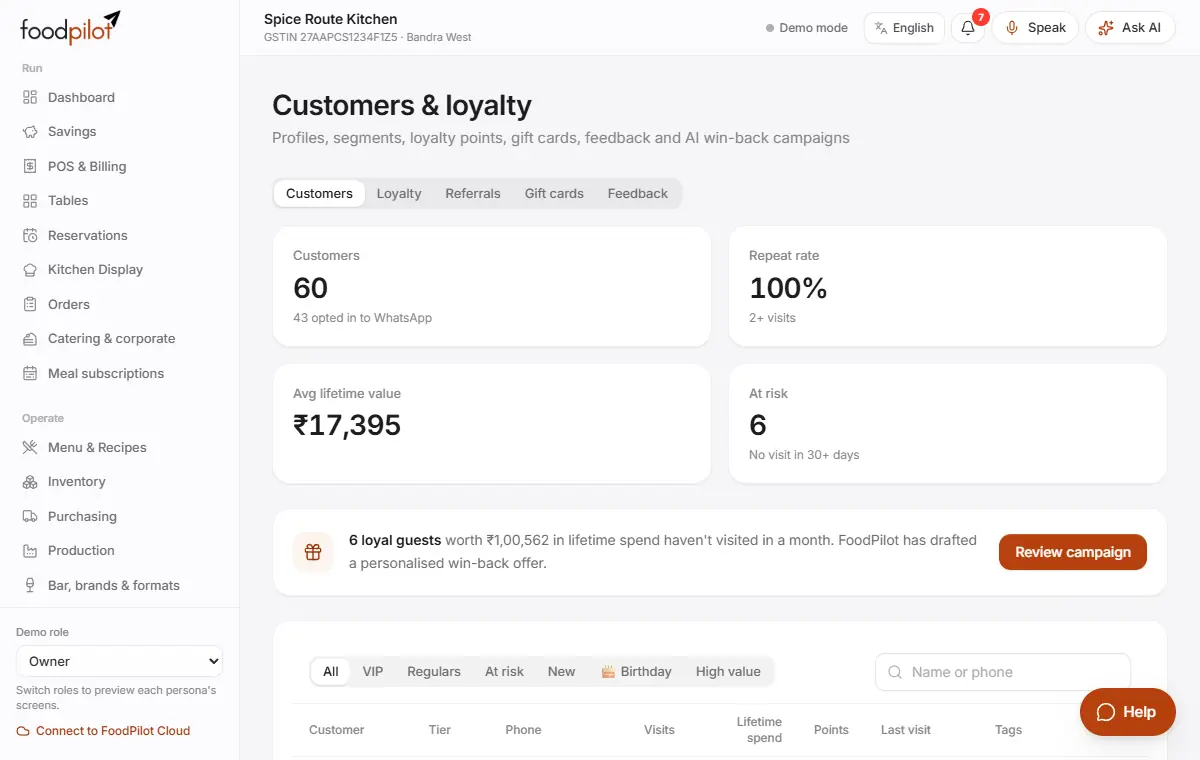
Customers & loyalty → Customers → tap a guest
- Step 1: Use the chips VIP, Regulars, At risk, New, Birthday or High value to filter.
- Step 2: Tap a guest to see visits, spend, points and wallet.
- Step 3: Add their birthday, anniversary and allergies, then tap Save profile.
Set up loyalty points
Customers & loyalty → Loyalty → Save programme
- Step 1: Open Loyalty and tick Enabled.
- Step 2: Set how points are earned and redeemed, tiers, expiry, bonus points, birthday rewards and stamp cards.
- Step 3: Tap Save programme.
Redeem points at the counter
- Step 1: Attach the guest and tap Pay.
- Step 2: In the loyalty panel, tap Redeem. Tap Send code so the guest gets a code on their phone.
- Step 3: Type the code and tap Verify.
Sell a gift card
Customers & loyalty → Gift cards → Issue card
- Step 1: Tap Issue card, enter the amount and, if you like, the guest.
- Step 2: Tap Issue ₹….
- Step 3: At payment, the guest pays with Gift card.
Make a coupon
Marketing → Coupons → New coupon → Save coupon
- Step 1: Open Marketing → Coupons and tap New coupon.
- Step 2: Enter a code and the type: percent off, fixed ₹ off, or buy X get Y. Add a minimum order and dates.
- Step 3: If you like, limit it to some days, hours or items, set uses per guest, or make it first-order only.
- Step 4: Tap Save coupon.
Send a campaign
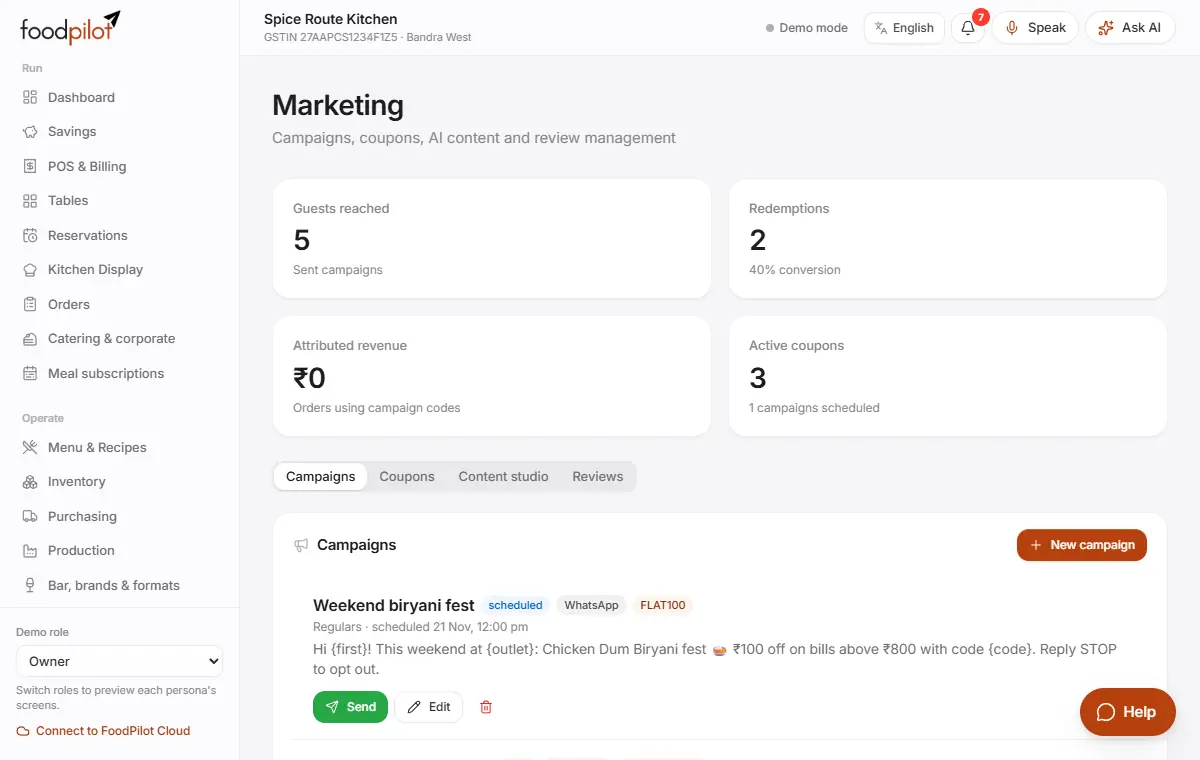
Marketing → Campaigns → New campaign
- Step 1: Tap New campaign. Name it, pick the guest group and the channel (WhatsApp, SMS or Email), and write the message in English or Hindi.
- Step 2: Attach a coupon if you like. Tap Schedule or Save draft.
- Step 3: Tap Send to open each guest's WhatsApp message, or Download recipients CSV. Then tap Mark as sent.
Write posts and replies with AI
Marketing → Content studio
- Step 1: Pick the content type (social media post, festival promo, review reply and more), the language and any offer.
- Step 2: Tap Generate 3 variants. Copy the one you like.
Reply to feedback
Customers & loyalty → Feedback → Reply
- Step 1: Tap Reply on the feedback.
- Step 2: Pick a suggested reply in English or Hindi, or write your own.
- Step 3: Tap Save reply.
Tips
- Campaigns only go to guests who agreed to get messages.
- When regulars stop coming, a banner offers Review campaign for a win-back offer.
- Guests see their points under My rewards on your online store and table QR.
Common problems
- Points can't be redeemed.
- Attach the customer to the bill first, and redeem points before taking any other payment.
- Campaigns aren't sent by themselves.
- Without a messaging provider, you send each message from your phone with Send. Automatic WhatsApp needs the Professional plan and a WhatsApp Business account.
- A guest asks us to delete their data.
- Open the guest and use Erase customer. See Your data, privacy and security.
Coming soon
- Automatic win-back, birthday and feedback messages
- Message limits and one-tap unsubscribe for guests