
Guests 2 min read
Reservations and online booking
आरक्षण और ऑनलाइन बुकिंग
Take bookings by phone or online, manage the waitlist and send WhatsApp reminders.
फ़ोन या ऑनलाइन बुकिंग लें, वेटलिस्ट संभालें और WhatsApp पर रिमाइंडर भेजें।
What it does
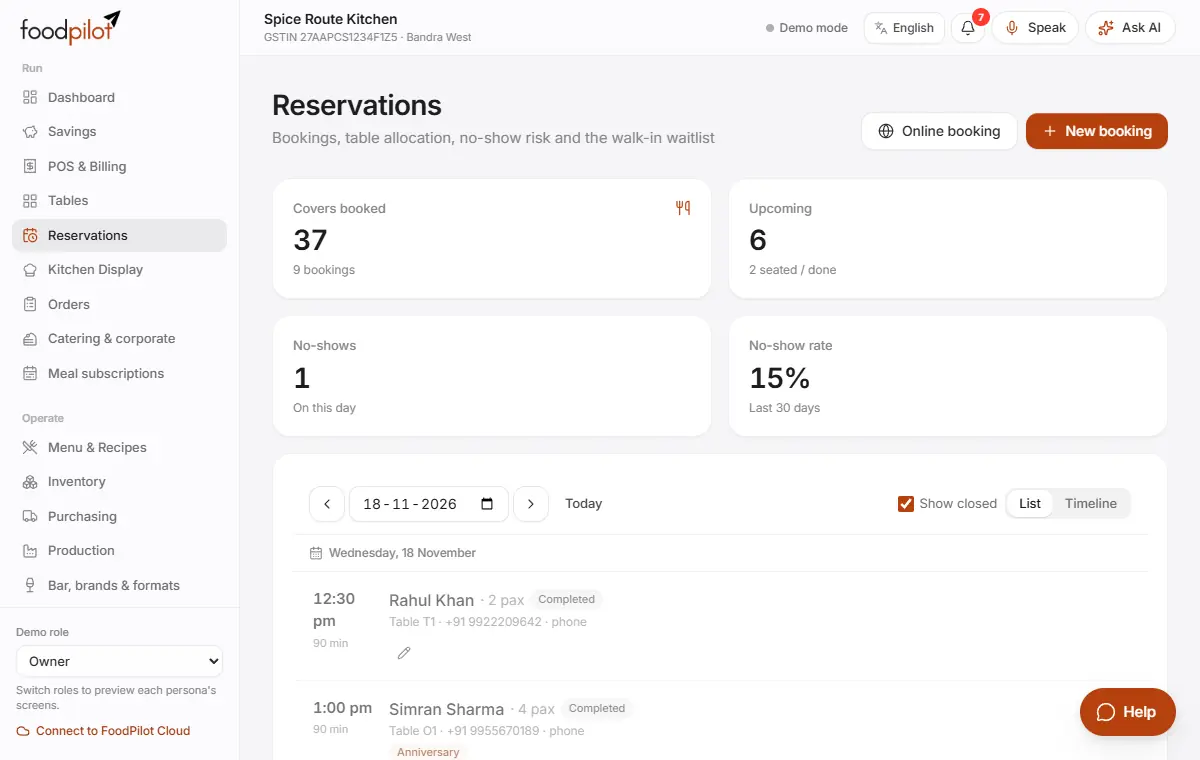
See the day's bookings as a list or a timeline, with the best table suggested.
Guests book for themselves from your booking link on Google, Instagram or your website.
Manage walk-ins on a waitlist with wait times, and remind guests on WhatsApp.
- Who uses it
- ManagerCaptainCashierOwnerGuest
- Which plan
- Growth and above
- Where to find it
- Sidebar → Reservations
How to
Add a booking
Reservations → New booking → Save booking
- Step 1: Open Reservations and tap New booking.
- Step 2: Fill in the guest's name, phone, party size, date and time.
- Step 3: Pick a table, or tap Suggest … for the best one. Add an occasion or a deposit if needed.
- Step 4: Tap Save booking.
On the day
- Step 1: Tap Remind to send a WhatsApp reminder, and Confirm when the guest confirms.
- Step 2: Tap Seat when they arrive, then Open POS to start their order.
- Step 3: Tap Complete when they leave, or No-show if they don't come.
Manage the waitlist
- Step 1: Tap Add walk-in and enter the name, phone and party size. FoodPilot quotes a wait time.
- Step 2: When a table is free, tap Seat, then Seat & open POS.
- Step 3: Tap Left if they leave.
Take bookings online
Reservations → Online booking → Save
- Step 1: Tap Online booking and turn on Take bookings online.
- Step 2: In Rules, choose Confirm automatically or I accept each request, the slot length, the largest party and how far ahead guests can book.
- Step 3: In Hours, add your opening hours. Copy Monday to every day saves time.
- Step 4: In Link & Google, copy the booking link or QR code. Follow the steps to add a "Reserve" button on Google, or tap Copy code to put it on your website.
- Step 5: Tap Save.
Accept booking requests
- Step 1: If you accept each request, new online bookings show Accept and Decline.
- Step 2: The guest sees "Table booked" or "Request sent" and can view or cancel the booking from their link.
Tips
- Deposits are recorded on the booking. Collect the money yourself: guests don't pay online for bookings yet.
- Booking apps and websites can book through the Partner Reservations API. See For developers.
- Timeline shows the whole day so you can spot gaps and clashes.
Common problems
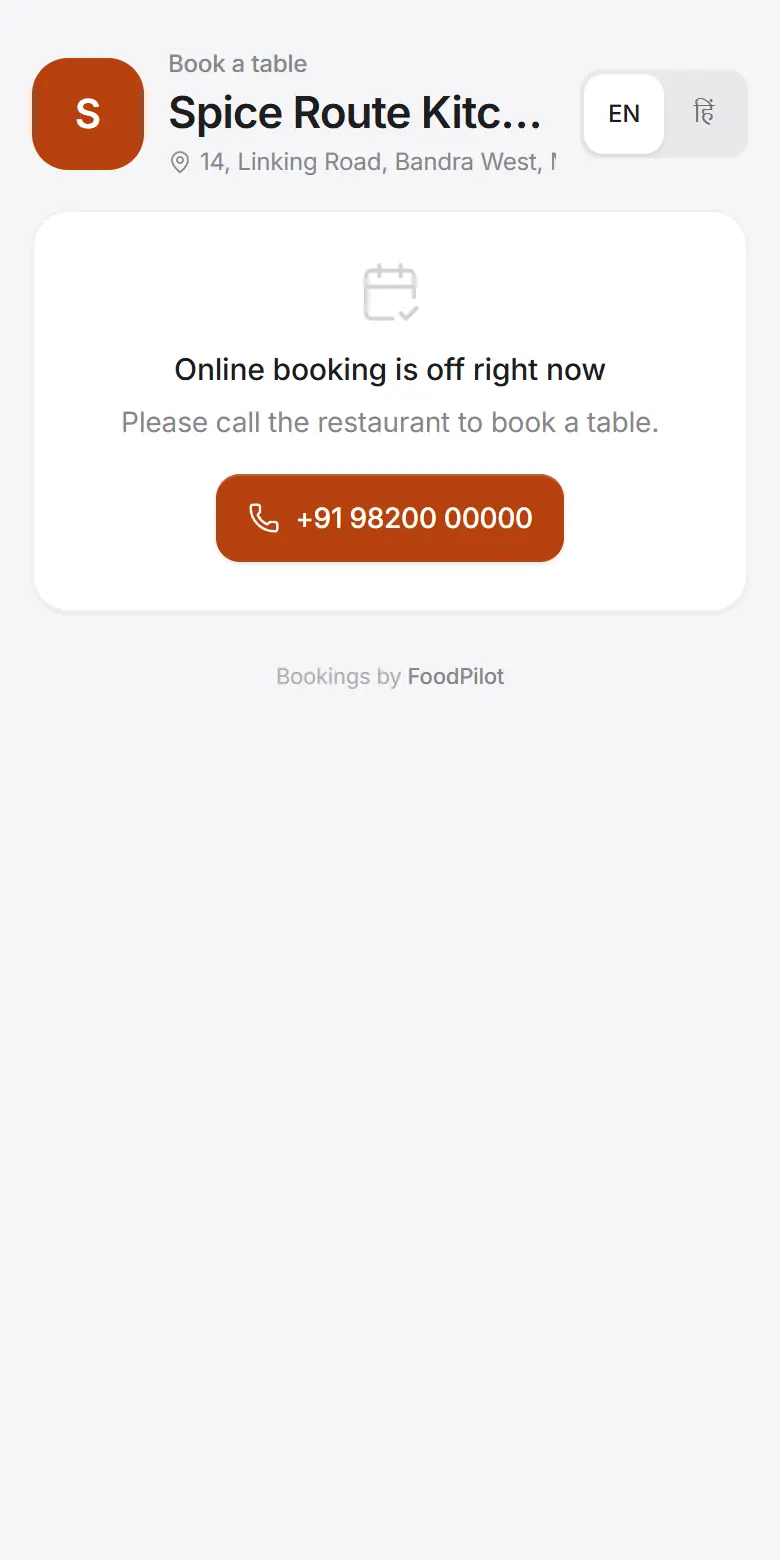
- Guests see "Online booking is off right now".
- Turn on Take bookings online and tap Save.
- Guests see "No tables free for this party size".
- Check Tables guests can get online, Largest party online and Max guests per slot in Rules, and your Hours.
- Reminders don't go out by themselves.
- Remind opens WhatsApp on your phone with the message ready. Automatic sending needs a WhatsApp Business account.