
Team 3 min read
Staff, roles and payroll
स्टाफ़, भूमिकाएँ और वेतन
Staff logins and roles, PIN clock-in, rosters, leave, tips and monthly payroll with payslips.
स्टाफ़ लॉगिन और भूमिकाएँ, PIN से हाज़िरी, रोस्टर, छुट्टी, टिप और पेस्लिप के साथ मासिक वेतन।
What it does
Add your team, give each person a login and a role, and decide who may give discounts or refunds.
Staff clock in with a 4-digit PIN. Rosters, leave and breaks are tracked.
Share tips fairly and run payroll with PF, ESI and PT, then print payslips.
- Who uses it
- OwnerManagerCashierCaptainChef
- Everyone clocks in. Owners and managers run the rest.
- Which plan
- Staff & payroll: Growth and above · Roles & approvals: Starter and above
- Where to find it
- Sidebar → Staff & payroll and Roles & approvals
How to
Add an employee
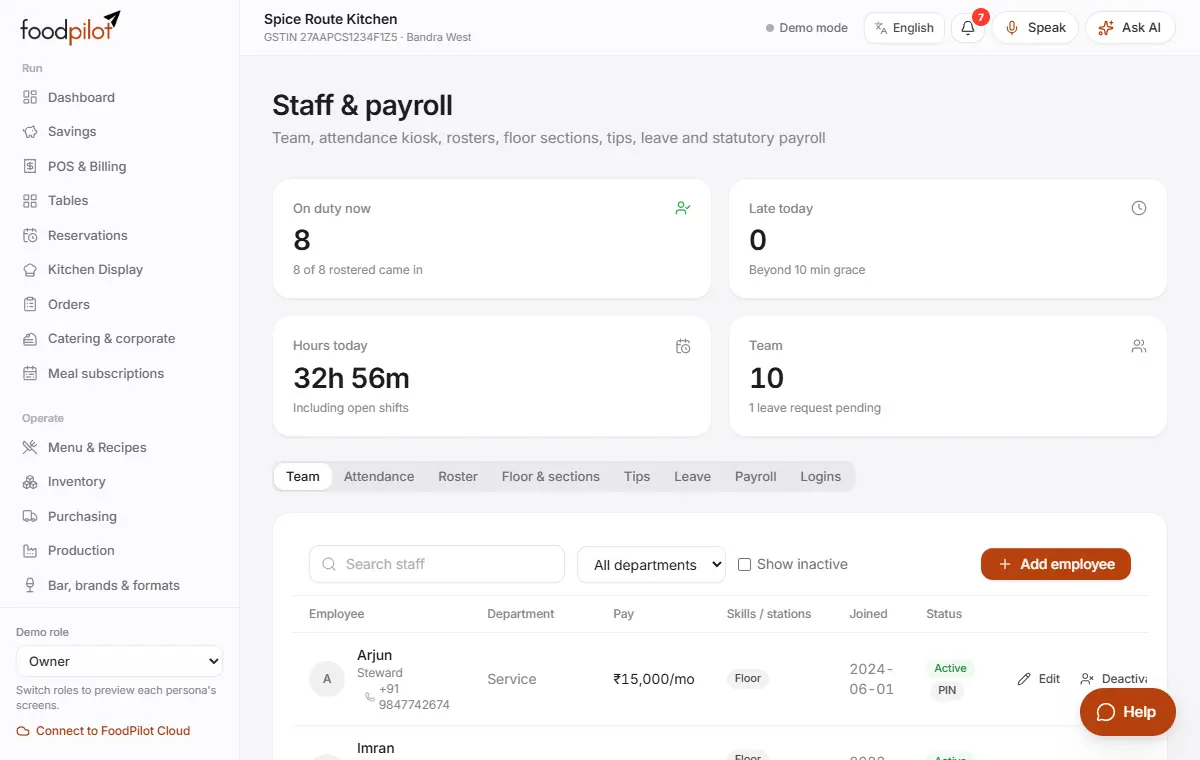
Staff & payroll → Team → Add employee → Save
- Step 1: Open Staff & payroll → Team and tap Add employee.
- Step 2: Fill in the name, phone, role, pay type (monthly salary or hourly wage), salary and joining date.
- Step 3: Set a 4-digit Kiosk PIN for clock-in.
- Step 4: Tap Save.
Give someone a login
Staff & payroll → Logins → Add login
- Step 1: Open Logins and tap Add login.
- Step 2: Pick the person under Fill from employee and choose their role: Manager, Cashier, Waiter / Captain, Chef, Storekeeper or Accountant.
- Step 3: Save. They sign in with their own phone number.
Clock in and out
Staff & payroll → Attendance → Clock in / out
- Step 1: Open the attendance kiosk on a shared tablet.
- Step 2: Staff tap their name and enter their 4-digit PIN.
- Step 3: Tap Clock in. Later: Rest break, Meal break, End break and Clock out.
Make the weekly roster
Staff & payroll → Roster
- Step 1: Open Roster and tap a day to add a shift (start, end, station). Save it.
- Step 2: Tap Copy last week to save time.
- Step 3: Staff can Request a swap. Managers tap Approve or Reject.
Share tips
Staff & payroll → Tips → Tip rules
- Step 1: In Tip rules, choose how the pool is shared (equal shares, by hours, by role points) and any house cut. Tap Save tip rules.
- Step 2: In Daily tip-out, tap Pay ₹… for each person, or Mark all paid in cash.
Run payroll
Staff & payroll → Payroll → Finalize & mark paid
- Step 1: Open Payroll and pick the month.
- Step 2: Tap Add tips from tip rules if you pay tips with salary. Add incentives or deductions.
- Step 3: Tap Finalize & mark paid. Payslips lock and the salary is recorded in Finance.
- Step 4: Tap Payslip, then Print, for each person.
Decide what needs a manager's approval
Roles & approvals → Approval rules → New rule
- Step 1: Open Roles & approvals → Approval rules. Tap Add default rules for a good start.
- Step 2: Or tap New rule. Pick the action (Discount, Void item, Refund, Cancel order, Complimentary and more), an amount or % above which it applies, and Needs manager PIN or Log only.
- Step 3: Tap Save rule.
Make a custom role
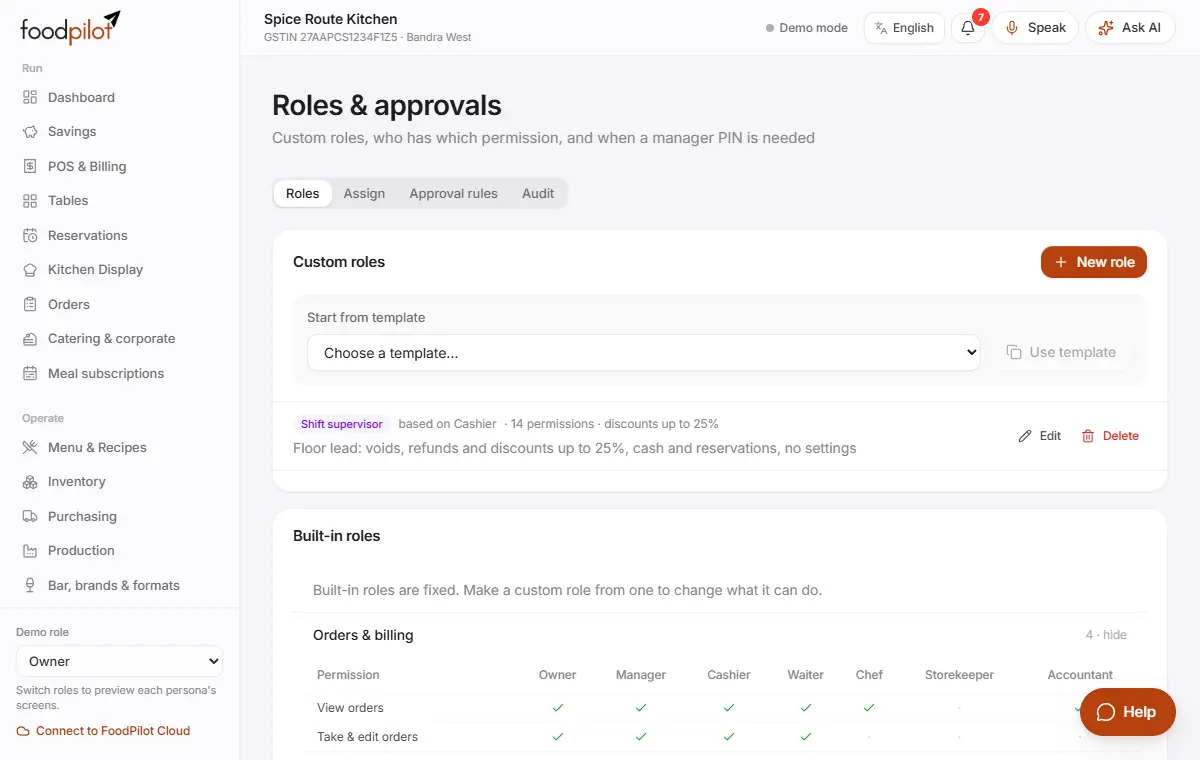
Roles & approvals → Roles → New role
- Step 1: Tap New role, or start from a template with Use template.
- Step 2: Name it, set its discount limit, and tick what it can do.
- Step 3: Tap Save role, then give it to people in Assign.
Tips
- PINs are stored scrambled. Nobody, not even the owner, can read them back.
- Turn on a photo at clock-in or a location check in Attendance → Kiosk settings.
- Every approval and refusal is listed in Roles & approvals → Audit.
Common problems
- Wrong PIN, or the PIN is locked.
- After 5 wrong tries the PIN locks for a while. A manager can set a new one in Team → Edit.
- It says I'm too far from the outlet.
- Location check is on. Clock in on site, or ask a manager to change Kiosk settings.
- It says the camera isn't available.
- Allow camera access in the browser, or ask a manager to turn off photo punches.
- Someone forgot to clock out.
- FoodPilot clocks them out automatically and flags it. A manager fixes it in Attendance → Daily register → Correct.
Coming soon
- Simple staff screens with a leaderboard
- Tip statements staff can see