
Kitchen & stock 2 min read
Kitchen display (KDS)
किचन डिस्प्ले (KDS)
Show KOTs on a kitchen screen by station, with timers, allergens and one-tap Ready.
KOT को स्टेशन के हिसाब से किचन स्क्रीन पर दिखाएँ, टाइमर, एलर्जी जानकारी और एक टैप में रेडी के साथ।
What it does
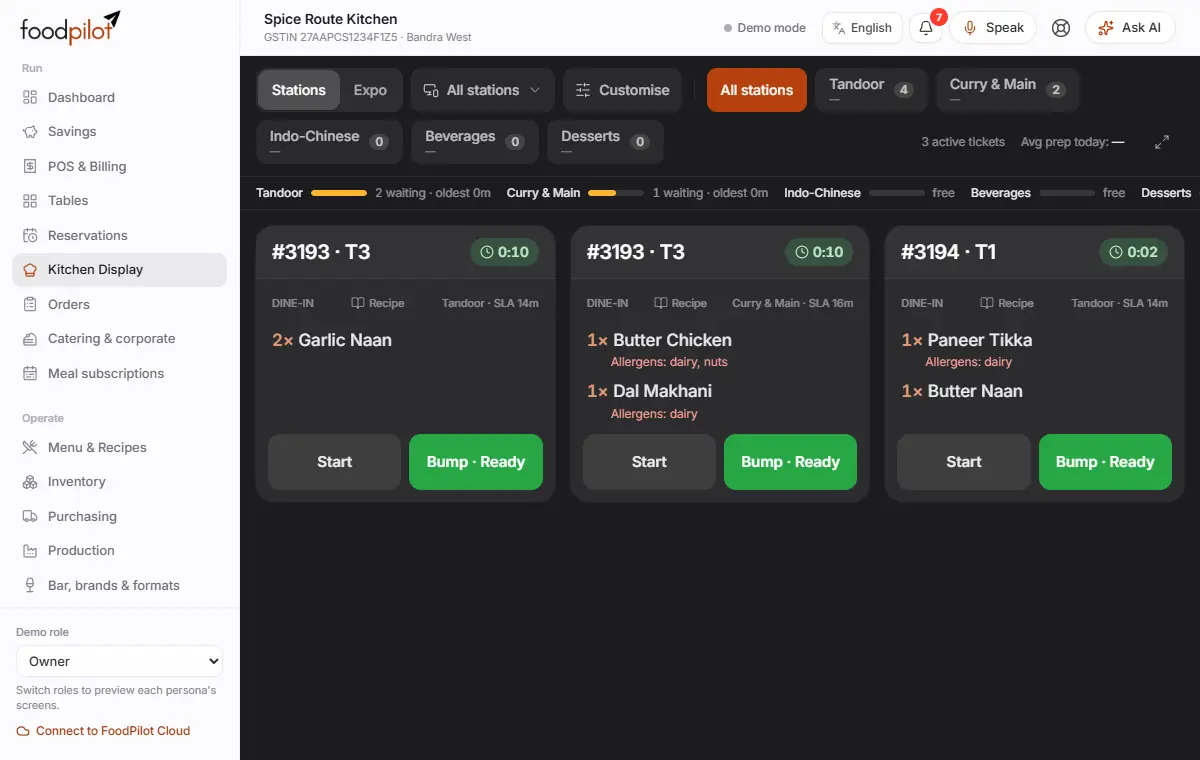
Every KOT appears on a kitchen screen, sent to the right station: Tandoor, Chinese, Bar and so on.
Timers show how long each ticket has waited. Allergens and kitchen notes stand out.
Cooks tap Start and Bump · Ready. The pass sees what's ready in Expo.
- Who uses it
- ChefManagerOwner
- Which plan
- Growth and above
- Printing KOTs on a kitchen printer doesn't need the kitchen display.
- Where to find it
- Sidebar → Kitchen Display
How to
Set up a kitchen screen
Kitchen Display → Customise
- Step 1: Open FoodPilot on the kitchen tablet or TV and sign in with a chef login.
- Step 2: Go to Kitchen Display.
- Step 3: Tap Customise to name this screen, choose a layout and pick the stations it shows.
- Step 4: Tap the full-screen button to hide everything else.
Cook and bump a ticket
Kitchen Display → Start → Bump · Ready
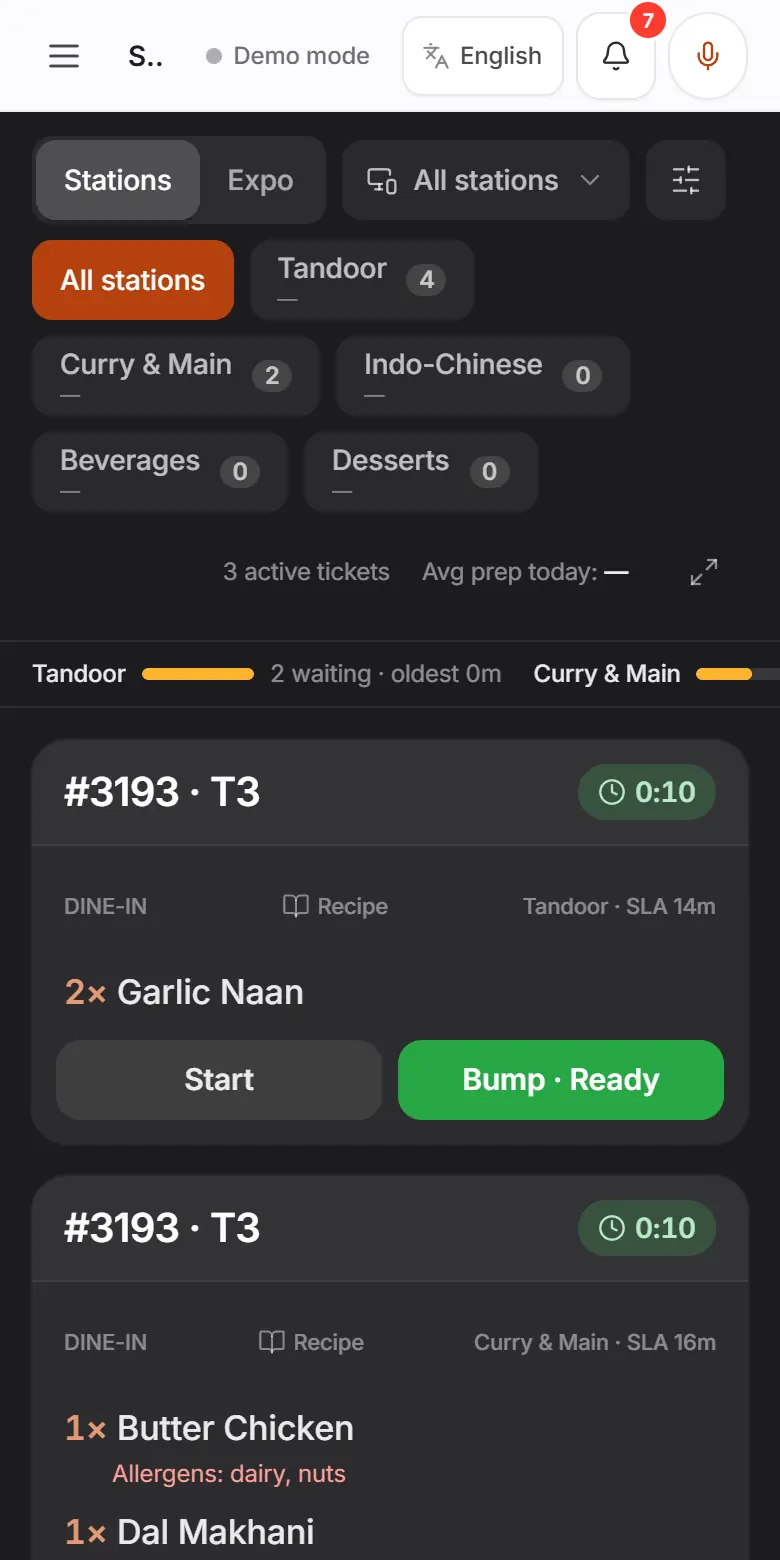
- Step 1: New KOTs appear as tickets with the table, order type and a timer.
- Step 2: Pick All stations or one station at the top.
- Step 3: Tap Start when you begin cooking.
- Step 4: Tap Bump · Ready when it's done.
Run the pass with Expo
- Step 1: Tap Expo.
- Step 2: Each order shows how many stations are ready, for example "2/3 ready".
- Step 3: When the whole order has gone out, tap Served.
Re-fire a dish
- Step 1: Tap Re-fire on the line.
- Step 2: Confirm. The first attempt's ingredients are written off as wastage.
When one station is overloaded
- Step 1: The load bar shows how many items wait at each station and how old the oldest one is.
- Step 2: When a station is overloaded, FoodPilot shows an alert and a Move to … button on its tickets, for example Move to Tandoor 2.
- Step 3: Tap it to move the ticket to the free station.
Held courses
- Step 1: When the restaurant serves in courses, later courses show Held — fire when ready.
- Step 2: They start when the captain taps Fire on the POS.
Tips
- Set each dish's station in Menu & Recipes → New dish → Basics → Kitchen station.
- Tap Recipe on a ticket to see the dish's standard recipe.
- The top of the screen shows active tickets and today's average prep time.
- Prefer paper? Add a KOT printer for each station in Devices & printers.
Common problems
- A KOT went to the wrong station.
- Check the dish's Kitchen station in Menu & Recipes, and the stations chosen under Customise on this screen.
- Tickets don't appear on the screen.
- Check the screen is signed in to the same outlet and shows that station. If the status at the top says Offline, tickets arrive when the connection returns.
- The tablet keeps going to sleep.
- Turn off screen sleep in the tablet's display settings and keep it charging.