
Kitchen & stock 3 min read
Inventory and purchasing
स्टॉक और ख़रीद
Track stock by recipe, record wastage and counts, and buy from suppliers with POs and bills.
रेसिपी से स्टॉक ट्रैक करें, बर्बादी और गिनती दर्ज करें, और PO व बिल से सप्लायर से ख़रीदें।
What it does
Every bill takes ingredients off stock by recipe, so you always know what's left.
Record wastage and physical counts, and compare what should have been used with what was.
Raise purchase orders, receive goods, scan supplier bills and track what you owe.
- Who uses it
- StorekeeperChefManagerOwner
- Which plan
- Inventory: Growth and above · Purchasing: Professional and above
- Where to find it
- Sidebar → Inventory and Purchasing
How to
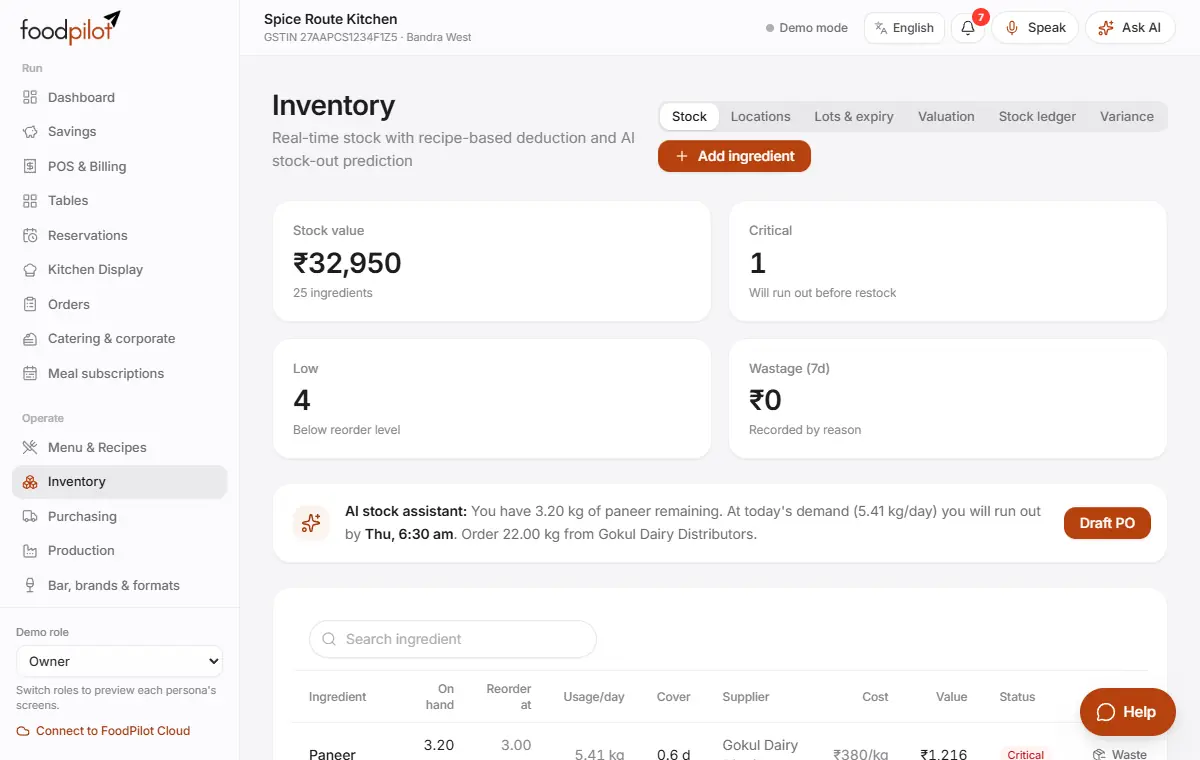
Add an ingredient
Inventory → Add ingredient → Save
- Step 1: Tap Add ingredient.
- Step 2: Fill in the name, stock unit (g / kg, ml / L or pieces), cost, reorder level and opening stock. Pick the usual supplier.
- Step 3: Tap Save.
Record wastage
Inventory → Stock → Waste
- Step 1: Find the item and tap Waste.
- Step 2: Enter the quantity and pick a reason: Spoiled, Expired, Burnt / remade, Dropped, Over-portioned or Staff meal.
- Step 3: Tap Save.
Do a physical count
Inventory → Stock → Count
- Step 1: Tap Count on the item and enter what you counted. Add a note such as "Night closing count".
- Step 2: FoodPilot shows the difference from the system stock. Tap Save.
- Step 3: See the full picture in Variance (what should have been used against what was).
Order from a supplier
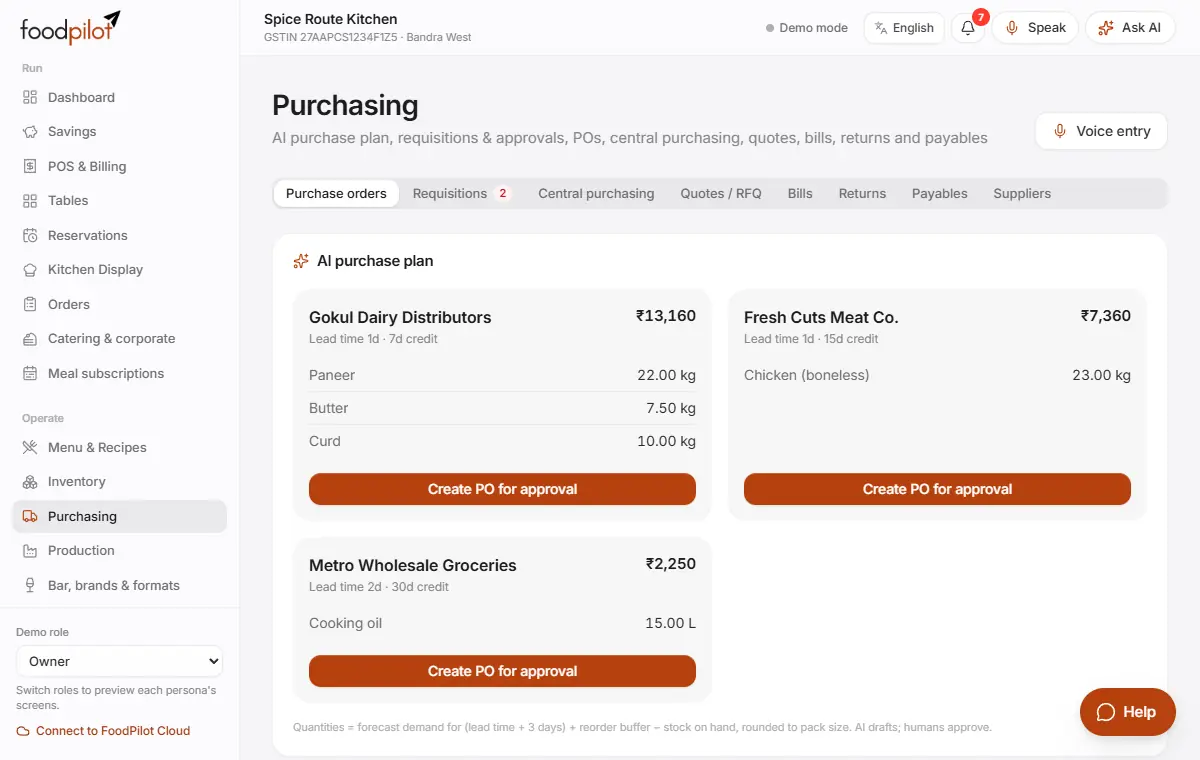
Purchasing → Purchase orders → Create PO for approval → Approve
- Step 1: Open Purchasing. The AI purchase plan shows what to reorder from each supplier.
- Step 2: Tap Create PO for approval.
- Step 3: A manager taps Approve.
Receive the goods
Purchasing → Receive (GRN) → Record GRN
- Step 1: When the delivery arrives, tap Receive (GRN) on the PO.
- Step 2: Enter what you actually received, the batch number and the use-by date.
- Step 3: Tap Record GRN. Stock goes up straight away.
Record the supplier's bill
Purchasing → Bills → Scan invoice
- Step 1: Open Bills and tap Scan invoice. Take a photo of the bill.
- Step 2: Tap Review bill, check every field, and tap Save bill.
- Step 3: Or tap Record bill from PO, or Bill without PO.
- Step 4: FoodPilot checks the bill against the PO and the goods received, and warns about duplicates and price rises.
Pay a supplier
Purchasing → Payables → Pay → Record payment
- Step 1: Open Payables to see what you owe and what's overdue.
- Step 2: Tap Pay, enter the amount, mode and UTR, and tap Record payment.
Move stock between store rooms
Inventory → Locations → Transfer stock
- Step 1: Open Locations and tap Transfer stock.
- Step 2: Pick the ingredient, From, To and quantity.
- Step 3: Tap Transfer.
Tips
- Say a purchase instead of typing it: tap Voice entry in Purchasing and say, for example, "dhai kilo pyaaz 400 rupaye Sharma se". Check the draft and confirm.
- Lots & expiry shows what expires soon, so you use the oldest stock first.
- Demand forecast → Ingredients can draft purchase orders for you.
- Central kitchens: Production plans batches and sends them to outlets. See Catering, bar, central kitchen and more.
Common problems
- I can't delete an ingredient.
- It's used in recipes. Remove it from those recipes first.
- How do I change the stock on hand?
- Use Count or Waste, not the edit form. Every change is kept in the Stock ledger.
- It says no received POs are waiting for a bill.
- Receive the PO first with Receive (GRN), or use Bill without PO.
- A scanned bill says "No supplier matched".
- Pick the supplier, or add them in Purchasing → Suppliers first.