
Devices & data 2 min read
Your data, privacy and security
आपका डेटा, गोपनीयता और सुरक्षा
Two-step login, device control, export everything, and delete your account or a guest's data. Data stored in India.
दो-चरण लॉगिन, डिवाइस पर नियंत्रण, सारा डेटा एक्सपोर्ट करें, अपना खाता या किसी मेहमान का डेटा मिटाएँ। डेटा भारत में।
What it does
Your data belongs to you. Export everything any time.
Protect logins with two-step verification and sign out lost devices at once.
Erase a guest's personal data on request, or delete your restaurant. Your data is stored in India, in Mumbai.
- Who uses it
- OwnerManager
- Which plan
- Every plan, including Free
- Where to find it
- Settings → Security and Your data, and Data centre
How to
Turn on two-step verification
Settings → Security → Two-step verification → Turn on
- Step 1: Tap Turn on and scan the QR code with an authenticator app.
- Step 2: Type the 6-digit code.
- Step 3: Save your recovery codes somewhere safe and tap I've saved them.
Sign out other devices
Settings → Security → Sessions
- Step 1: See where you're signed in.
- Step 2: Tap Revoke on a device, or Sign out others.
Export everything
Settings → Your data → Download all data
- Step 1: Under Export everything, tap Download all data. You can do this up to 5 times an hour.
- Step 2: For single lists (menu, customers, sales), use Data centre → Export → Download JSON or Download all CSVs.
Bring your data from another POS
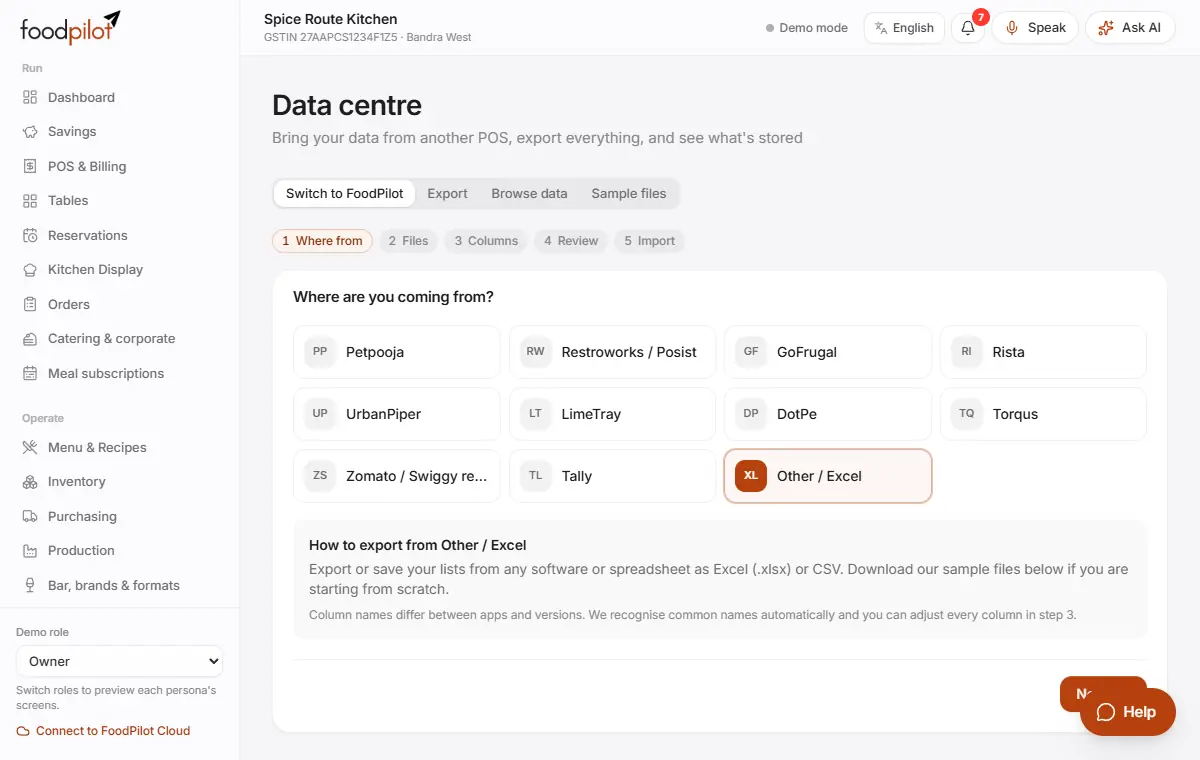
Data centre → Switch to FoodPilot
- Step 1: Pick where you're coming from (Petpooja, Restroworks / Posist, GoFrugal, Rista, Tally, Excel and more) and tap Next.
- Step 2: Tap Choose files, say what each sheet contains, and match the columns.
- Step 3: Choose what happens when a record already exists, then tap Import now.
- Step 4: Keep the tab open until the import finishes.
Erase a guest's data
Customers & loyalty → open the guest → Privacy → Erase customer…
- Step 1: Check the request really comes from the guest.
- Step 2: Open the guest, scroll to Privacy and tap Erase customer….
- Step 3: Type ERASE and confirm.
- Step 4: Their name, phone, email, birthday, allergies and notes are removed from every outlet. Bills keep their amounts and GST for your tax records, without the guest's details.
Only the owner (or a custom admin role) can erase a guest.
Delete your restaurant
Settings → Your data → Delete restaurant…
- Step 1: Type your restaurant's name and tap Delete in 30 days.
- Step 2: You can tap Cancel deletion any time in those 30 days.
- Step 3: To delete only your own login, use Delete my account….
Let FoodPilot support look at your account
Settings → FoodPilot support access → Manage
- Step 1: Tap Manage and allow read-only access for 1 to 72 hours.
- Step 2: Support can look but not change anything. Every visit is written to your own audit log.
Tips
- Your data is stored in India: FoodPilot's database and servers are in Mumbai.
- Staff PINs and passwords are stored scrambled. Nobody can read them back.
- Read the Privacy Policy and DPDP notice for the full details.
Common problems
- I don't see Security or Your data in Settings.
- They need a signed-in FoodPilot Cloud restaurant. The offline demo doesn't have them.
- I lost the phone with my authenticator app.
- On the login screen, tap "Lost your phone? Use a recovery code".
- Exports from Data centre are missing older bills.
- Data centre exports cover recent bills. For everything, use Settings → Your data → Download all data.