Devices & data 2 min read

Devices and printers

डिवाइस और प्रिंटर

Connect receipt and KOT printers, cash drawers, scales, scanners and a customer screen, or use the Windows app.

रसीद और KOT प्रिंटर, कैश ड्रॉअर, तराज़ू, स्कैनर और ग्राहक स्क्रीन जोड़ें, या Windows ऐप इस्तेमाल करें।

Updated

Whole guide as PDF

What it does

Print receipts, KOTs and labels on 58 mm or 80 mm thermal printers by USB, Bluetooth, network or an Android POS's own printer.

Open the cash drawer on cash payments, and use weighing scales, barcode scanners and a customer screen.

FoodPilot runs on any phone, tablet or computer. Install it as an app, or use FoodPilot for Windows.

Who uses it
OwnerManagerCashier
Which plan
Every plan, including Free
Where to find it
Sidebar → Devices & printers
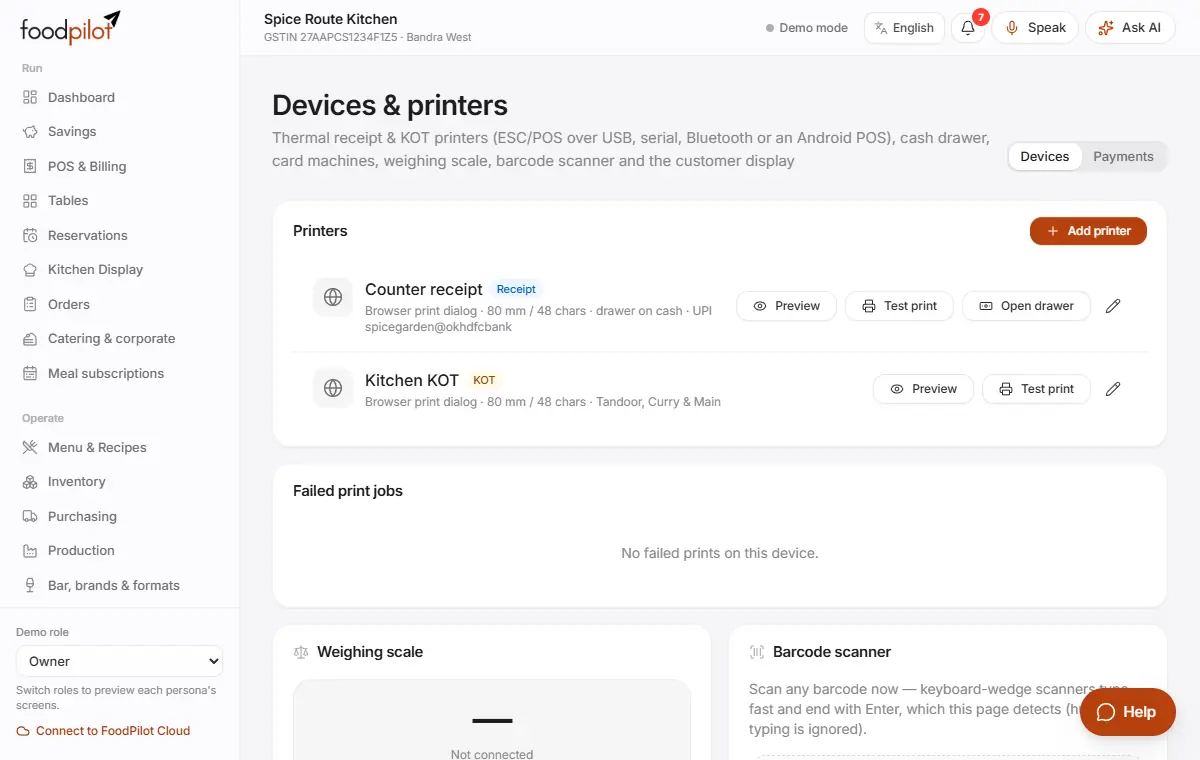
Devices & printers with printers, failed print jobs, scale, scanner and customer display

How to

Add a printer

Devices & printers → Devices → Add printer → Save → Test print

  1. Step 1: Tap Add printer. Give it a name and a role: Receipt / invoice, KOT (kitchen) or Label.
  2. Step 2: Choose the connection (see the next section), the paper width (80 mm or 58 mm) and the number of copies.
  3. Step 3: For a KOT printer, pick the stations it prints for.
  4. Step 4: Tap Save, then Connect and Test print.

Pick the right connection

  1. Step 1: USB or serial printer on a computer: Web Serial or WebUSB (Chrome or Edge).
  2. Step 2: Bluetooth printer: Bluetooth (BLE) printer.
  3. Step 3: Android POS with a built-in printer (Sunmi, PAX, iMin): Android POS built-in printer.
  4. Step 4: Network (LAN) printer: Desktop app (FoodPilot for Windows), or Network via HTTP print server.
  5. Step 5: Anything else: Browser print dialog.

Open the cash drawer

  1. Step 1: Plug the drawer's cable into the receipt printer.
  2. Step 2: Edit the printer and tick Open cash drawer on cash payments.
  3. Step 3: Tap Open drawer to test it.

Print by itself

  1. Step 1: Turn on Auto-print on the printer.
  2. Step 2: KOTs print when you tap KOT, and receipts print when a bill is paid.

Reprint failed jobs

  1. Step 1: If a print fails, it waits under Failed print jobs.
  2. Step 2: Tap Retry once the printer is back.

Use FoodPilot for Windows

foodpilot.org/download

  1. Step 1: The Windows app gives you a dedicated POS window, silent printing to USB and network printers, kiosk mode and offline billing.
  2. Step 2: It updates itself quietly, and never while a bill is open.
  3. Step 3: If the Windows download isn't ready yet, install FoodPilot from Chrome or Edge with Install FoodPilot.

Tips

  • Pairing is saved per device. Each counter connects its own printer.
  • Auto-print works on the device that sent the KOT or took the payment.
  • Show the bill and a UPI QR to guests on a second screen. See Payments: UPI and card machines.

Common problems

Blank paper comes out.
The roll is in the wrong way round. Flip it and try Test print again.
It says "Not paired on this device".
Tap Connect on this device and choose the printer.
My USB or Bluetooth printer isn't found.
Use Chrome or Edge. Other browsers can't reach USB or serial printers.
My network printer doesn't print.
Browsers can't reach a network printer directly. Use the Windows app or an HTTP print server.

Coming soon

  • Android and iPhone apps in the app stores

Read next

Help articles

The same articles the AI help chat uses. In the app: Help & support → Help articles.

Setting up a printerप्रिंटर सेटअप करनाRead

How to add a receipt or KOT printer, connect it on each device and turn on auto-print.

Add a printer

  1. Go to Devices & printers (in the sidebar; on phones tap More) → Devices → Add printer.
  2. Give it a name and choose its role: Receipt / invoice, KOT (kitchen) or Label.
  3. Choose the connection (see below), the paper width (80 mm or 58 mm) and the number of copies.
  4. For a KOT printer, pick the stations it prints. None selected means all stations.
  5. For a receipt printer, you can turn on opening the cash drawer on cash payments, and printing a UPI QR on bills with your merchant UPI ID.
  6. Turn on auto-print and tap Save.

Connection types

  • Browser print dialog: works in any browser, but shows the print dialog every time.
  • Web Serial (USB-serial, COM port, or classic Bluetooth paired in the computer's settings) and WebUSB: Chrome or Edge.
  • Bluetooth (BLE) printer: Chrome or Edge on Android, Windows and macOS.
  • Network via HTTP print server: for LAN printers. Browsers can't reach a LAN printer directly, so this needs a print relay on your network.
  • Android POS built-in printer: Sunmi, PAX or iMin terminals, inside the FoodPilot Android app.
  • Desktop app: inside FoodPilot for Windows, prints silently to any printer installed in Windows or to a LAN printer by IP address.

The Android and Windows apps are listed on the Download page; some may still show "Coming soon".

Connect it on each device

Pairing is saved per device, not shared. On every computer or tablet that prints, tap Connect (or Choose printer in the Windows app) and pick the printer. The card then shows "Paired on this device". Tap Test print to check it. Open drawer tests the cash drawer, and Preview shows the ticket.

Auto-print

With auto-print on, KOTs print per station when they are sent, and receipts print when an order is paid on this device. Orders synced from other devices are not printed, so set up the printer on the device that sends KOTs or takes payment.

The receipt layout (logo, sections, terms, QR) is set in Customise → Receipts.

Open in Help →
Printer not printingप्रिंटर प्रिंट नहीं कर रहाRead

Fixes for a receipt or KOT printer that has stopped printing.

Steps

  1. Check the printer: switched on, paper loaded, cover closed, cable firm. Thermal paper prints on one side only, so if pages come out blank, flip the roll.
  2. Go to Devices & printers (in the sidebar; on phones tap More) → Devices and look at the printer's card. If it says "Not paired on this device", tap Connect and choose the printer again.
  3. Tap Test print.
  4. Make sure the printer is active and, for a KOT printer, that its stations include the dish's station (none selected means all).

Browser and connection

  • USB, serial and Bluetooth printing need Chrome or Edge. Safari and Firefox can't do it. The Browser support card on Devices & printers shows what this browser supports. Otherwise use the browser print dialog connection.
  • Bluetooth: Chrome doesn't always remember the printer after the page reloads. Tap Connect or Re-pair again.
  • WebUSB: if the computer's own printer driver is holding the printer, the browser can't open it. Switch the connection to Web Serial or the browser print dialog, or use FoodPilot for Windows.
  • LAN or network printers (port 9100) can't be reached from a browser. Use the Desktop app connection in FoodPilot for Windows, or an HTTP print server on your network.

Failed print jobs

FoodPilot retries a print once. If it still fails, the job is kept in Failed print jobs on that device. Choose the same or another printer and tap Retry, or dismiss it. Clear all empties the list. Prints through the browser dialog are not kept here.

Nothing prints automatically

Auto-print only works on the device that sent the KOT or took the payment, and only if that printer has auto-print turned on. The Auto-print card lists recent print attempts and their errors.

If it still doesn't work

  • Tap Preview to confirm what should print, then try from another device.
  • Raise a ticket in Help & support with the printer model, the connection type and the error shown in Failed print jobs.
App updates and installing FoodPilotऐप अपडेट और FoodPilot इंस्टॉल करनाRead

How FoodPilot updates itself and where to get the apps.

How updates work

  • New versions download in the background while you work. There are no pop-ups to click.
  • An update is applied only at a safe moment: never with a bill, cart or order open, never while you type or a payment is in progress. It waits until the screen is idle, you move to another screen, or FoodPilot is opened next time.
  • After an update you may see a small "Updated" message.
  • Offline bills and anything still waiting to sync stay on the device and carry on after the update.

FoodPilot for Windows

  • New versions download in the background and install only when the counter is idle (no open bill, cart or order, and nothing waiting to sync), or the next time the app opens.
  • Windows printers and LAN printers print silently in the Windows app (see "Set up a printer").

Install FoodPilot

  • Open the Download page on the FoodPilot website for Windows, Android, iPhone and iPad. Apps that are not published yet show "Coming soon".
  • In Chrome or Edge you can also install FoodPilot from the browser as an app, so it opens in its own window and its screens open without internet.

If something looks old

  1. Close FoodPilot completely and open it again: a waiting update is applied on the next launch.
  2. Make sure queued changes have synced first (see "Offline mode and sync").
  3. Never clear the browser's data to force an update while changes are queued; they would be lost.